
Games worth discovering




Call of Duty: Warzone FPS Boost Guide: Best Graphics Settings for Low-End & Mid-Range PCs
3K View2026-03-09Call of Duty - Looking to increase your FPS and enjoy smoother gameplay in Call of Duty: Warzone? This complete FPS boost guide covers the best graphics settings for low-end and mid-range PCs to help you reduce lag, eliminate stuttering, and maximize performance. Whether you're playing competitively or casually, these optimized settings will help you get better frame rates, faster response times, and a smoother Warzone experience without upgrading your hardware.
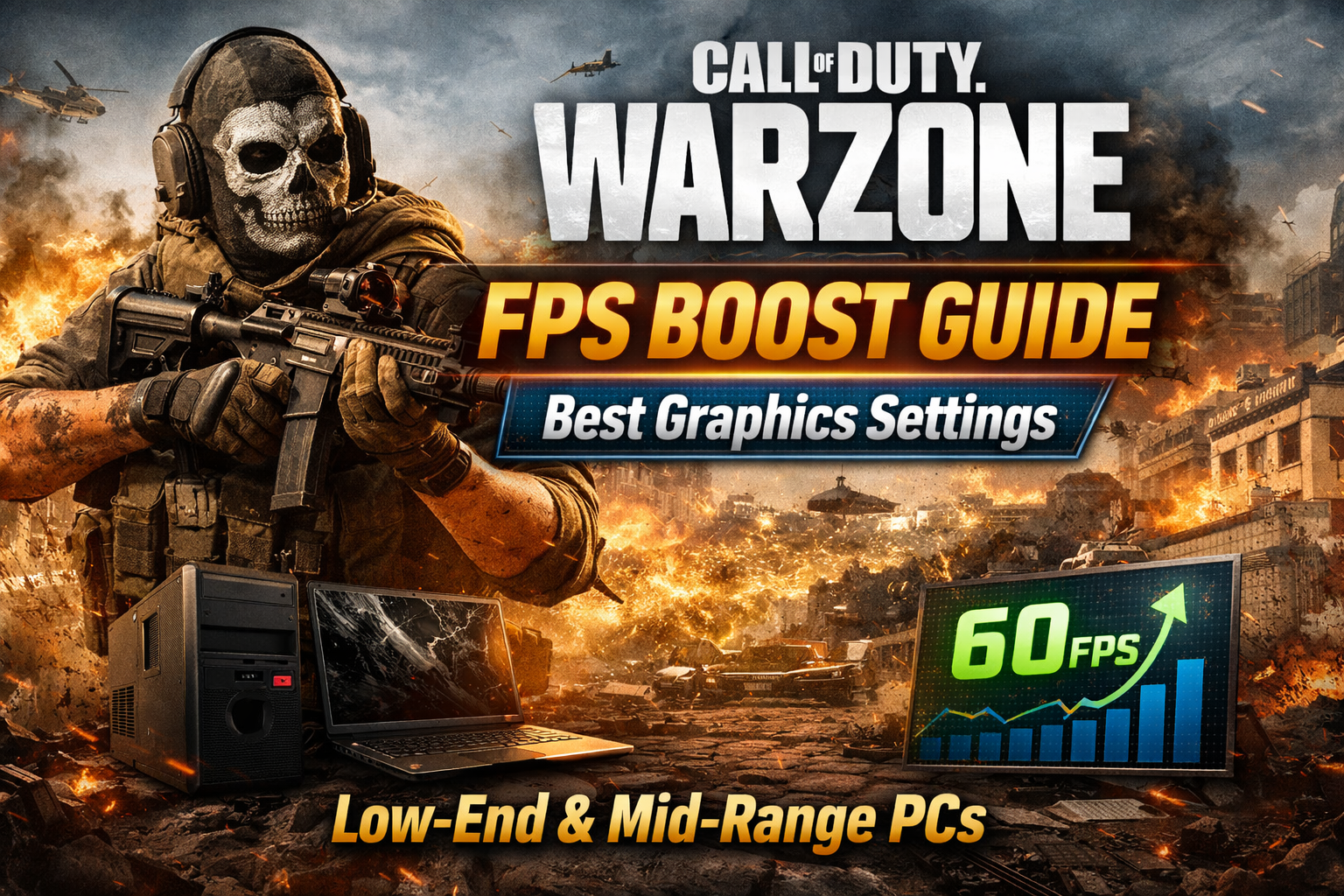
If you’re struggling with low FPS, stuttering, or lag in Warzone, the right graphics settings can dramatically improve performance. This guide shows the best optimized settings for smoother gameplay on low-end and mid-range PCs.
Call of Duty - Why FPS Matters in Warzone
Higher FPS (frames per second) means:
- Smoother gameplay
- Faster reaction time
- Better aiming accuracy
- Competitive advantage in gunfights
For battle royale games like Warzone, performance is more important than ultra graphics.
Call of Duty - Best Display Settings for Maximum FPS
- Display Mode: Fullscreen
- Screen Refresh Rate: Highest available
- Render Resolution: 90–100 (lower = more FPS)
- Aspect Ratio: Automatic
- V-Sync: Disabled
- Custom Frame Rate Limit:
- Gameplay: Unlimited
- Menu: 60 FPS
- Out of Focus: 30 FPS
Call of Duty - Best Quality Settings (Big FPS Boost)
Textures
- Texture Resolution: Low
- Texture Filter Anisotropic: Low
- On-Demand Texture Streaming: Disabled
Details & Shadows
- Particle Quality: Low
- Bullet Impacts & Sprays: Disabled
- Tessellation: Disabled
- Shadow Map Resolution: Low
- Cache Spot Shadows: Disabled
- Cache Sun Shadows: Disabled
- Particle Lighting: Low
Lighting
- Ambient Occlusion: Disabled
- Screen Space Reflection: Disabled
Post Processing Effects
- Anti-Aliasing: SMAA 1X or Disabled
- Depth of Field: Disabled
- Film Grain: 0.00
- Motion Blur (World & Weapon): Disabled
View Settings for Competitive Advantage
- Field of View (FOV): 100–110
- ADS Field of View: Affected
- Weapon Field of View: Wide
Wider FOV lets you see more enemies around you.
Call of Duty - Extra FPS Boost Tips
✅ Update Graphics DriversUse the latest drivers for better optimization.
✅ Enable Hardware-Accelerated GPU SchedulingWindows Graphics Settings → Turn it ON.
✅ Close Background AppsDisable browsers, launchers, and overlays.
✅ Use Performance Mode (Windows)Settings → System → Power → Best Performance.
✅ Lower Your ResolutionIf FPS is still low, try 1600×900 instead of 1920×1080.
Call of Duty - Expected FPS Gains
With these settings:
- Low-end PCs: +20–40 FPS
- Mid-range PCs: +30–60 FPS
- Much smoother gameplay and less input delay
Final Thoughts
You don’t need ultra graphics to win in Warzone. Optimized settings give you smoother performance, faster reactions, and a real competitive edge.
Mentioned games












Comments
 View desktop site
TapTap looks better
on the app 






is that warzone 1.....
2026-03-11
Author likedYes
2026-03-11
جميل
2026-03-17
سييييييي
2026-04-04
👉🤎👈🤎🤎🤎🤎🤭💋💋🙂
2026-04-04